
Snackable Series: “Promoting In-Class Interactivity: Part 1”

The Learning Technology Center (LTC) is pleased to invite faculty and instructional staff to attend the next free session in the Snackable Series “Solving Teaching Challenges One Byte at a Time.” In the “Snackable Series” sessions, a specific learning technology is spotlighted.  The next session will be held November 7 and 8, 2012 and focus on promoting in-class interactivity.

In this series learn how WebEx and social media tools can be used to increase the interaction between the instructor and students in your classes. Using social media tools to promote collaboration, such as Voicethread, wallwisher, and Twitter will be discussed. This session focuses on strategies for leveraging these technologies to personalize your class and increase engagement!

The dates, times, and location for this Snackable are as follows:

Wednesday, November 7, 2012:  Noon – 1 p.m.
Thursday, November 8, 2012:  11 a.m. to Noon
Location: iCIT Training Center, McGraw 112

Register online today for this “Snackable Series” session – seating is limited: http://signup.uww.edu
Google Docs

Google Docs (Drive) is a web-based office suite and data storage service offered by Google, which allows users to create and edit documents online, while collaborating in real-time with others, from any computer with internet access.

Faculty and students have the ability to upload and create Documents, Spreadsheets, Forms, Drawings, and Presentations online without having to install any software. Google Docs serves as a collaborative tool for editing in real time, allowing documents to be shared, opened, and edited by multiple users at the same time.  Additionally, the application can notify users when a comment or discussion is made or replied to, facilitating collaboration and supplying a revision history, allowing users to see what changes were made.

Google Drive is primarily intended as a convenient online location where students and faculty can store files, completely eliminating or reducing the need to rely on portable USB drives.  This functionality extends beyond simple file storage: files stored on Google Drive can easily be shared with on- and off-campus colleagues or coworkers, eliminating the need for sending bulky e-mail attachments.  Now you can simply include a link to the file stored on Google Docs, and recipient will always have access to the most recent information.

The tutorial is available at: Google: Docs and Sites, or sign up for training at http://signup.uww.edu.

If you have any additional questions regarding Google Docs, please contact the UW-W TSC Helpdesk.

Scheduling WebEx Meetings for Students

As many of you know, UW-Whitewater has WebEx setup for all faculty and staff.  We have been getting a number of requests for student use of WebEx in conjunction with various classroom activities.  Students cannot directly schedule meetings in the WebEx system.  However, instructors can schedule the meetings for the students in a way that the instructor will not need to be present to start up the meeting.

The document below will walk through the steps of how to use the “Advanced Scheduler” to schedule a meeting where students can join, and present to their groups without the need for the instructor to be present.

It is important to remember that students should be using the VoIP audio option only. The option to connect to audio over the phone should not be used. If the phone option is used by students, any costs incurred will be billed back to the department.

The tutorial is available at: WebEx: Scheduling Meetings for Students

If you have any additional questions regarding this, please contact the Learning Technology Center.

PowerPoint Audio Narration Workarounds

We have recently discovered that there is a known issue impacting PowerPoint audio narration on Mac computers. When recording audio narrations in PowerPoint, the audio can get randomly cut off. There are reported issues of this happening in Office 2004, 2008 and 2011. Currently, we have a few workarounds for those mac users who are looking to record audio narrated PowerPoint’s.

The best solution for the problem is to record your PowerPoint audio narrations on a PC.  This is by far the easiest solution, and you can continue using the same audio narrations function in PowerPoint to handle the recording.  UW-Whitewater Faculty and Staff are welcome to contact the Learning Technology Center for assistance.

  1. Do not save the slide timings when recording.  After you are done recording your narration, PowerPoint will prompt you if you would like to save the slide timings.  Click “No” to this box.  The down side is that the user will need to manually click through the PowerPoint.
  2. Record one slide at a time. Some users have had luck inserting the audio slide by slide, instead of using the built in audio narration functionality.  To do this, click on the “Insert” menu, choose “Audio” and select “Record”.
  3. Use a 3rd party application. Audio can be recorded in applications like Audacity or GarageBand and exported as a MP3 file.  Each slide would need to be recorded and added into the PowerPoint separately.

If you have any additional questions regarding this, please contact the Learning Technology Center.

D2L Known Issues List

On the Instructional Technology wiki, a page is available that lists known issues with the current version of D2L. These are issues, bugs, or errors that Desire2Learn is aware of and have plans to correct in future Service Packs and updates. This Known Issues list wiki page is available here.

As Service Packs and updates are applied to D2L, we will update this wiki page with information on what the Service Pack has fixed.

Register today for “iPad Uses in the Classroom”

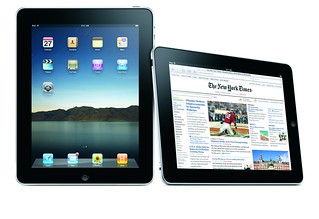
Have you considered incorporating iPads into your teaching?  Would you like to learn more about how other instructors have leveraged iPads in their teaching?  If so, please join us for a webinar on September 27.  Topics include classroom and project use of iPads, as well as the logistics of buying and setting up an account.  Case studies on how iPads were used in Math instruction and Digital Storytelling will also be discussed.

Bring your lunch and join us for the webinar iPad Uses in the Classroom on Thursday, September 27, at 12:00pm-1:30pm in UC 261. Register through my.uww.edu/signup.

Jointly sponsored by Andersen Library and the Learning Technology Center, this webinar will explore examples of successful iPad integration as well as offer suggestions on technical issues. (iPad image from flickr.com Some rights reserved by sucelloleiloes.)

Message from LEARN@UW on D2L Performance

Faculty, Staff and Students:

On behalf of our Learn@UW Executive Committee, I/we want you to know that we are taking steps now to improve the performance of Desire2Learn (D2L) systems at all UW campuses.

We are aware that many of you have experienced slow or delayed responses in D2L over the past few days. After D2L was upgraded to version 10 this summer, we noticed some occasional performance issues. Immediately, Learn@UW technical staff (the entity at UW-Madison’s Division of Information Technology that manages the D2L System) and D2L staff began working on solutions to improve performance. Later, Microsoft experts were engaged to help solve the problem.  Numerous patches to the system have been applied. However, these efforts have yielded only temporary success, and the root cause of these performance problems has not yet been identified. This is not uncommon in a complex environment like ours, but it is still very, very frustrating.

We will not tolerate this level of performance. While technical experts continue around the clock to resolve the issues, the Learn@UW Executive Committee is exploring alternatives. We are consulting with top D2L executives to determine what assistance D2L can provide beyond finding the problem and what viable alternatives exist.

We are confident that we are receiving the best attention possible from both vendors. Top leadership at UW System, Learn@UW Utility and Desire2Learn are engaged in this process.

As we work through this we ask for your continued patience, and we will continue to keep you posted on our efforts to restore the level of performance that faculty, staff, and students deserve.

Thank you.
Chris Clements, Chair
Learn@UW Exec Committee

Lorna Wong
Director, Learning Technology Development
University of Wisconsin System Administration

Tips for Working in D2L During Performance Issues

As of 1:00 pm on 9/6/12, the Learn@UW Utility is actively engaged with D2L and Microsoft experts for a solution to our D2L performance problems. All UW System campuses are experiencing slow D2L system performance.  As we wait for a resolution to the D2L issues, we have the following recommendations for you:

  • Try to work during low usage periods, including early morning (i.e., before 9 a.m.) and in the late evening or at night (i.e., after 8 p.m.). Avoid the 11 a.m. to 1 p.m. time period whenever possible as this seems to be the highest peak of usage time.
  • Draft your discussion messages in Word and copy/paste to D2L when you want to post. This strategy will save you from losing a message you draft in D2L in the event that D2L times out when you are submitting.
  • Print Content items for the current week so you can still reference course materials if/when D2L is down.
  • Ask your professor if it is acceptable to send assignments via email if you are unable to access the Dropbox. You can find your professor’s email address in the UW-W Directory (http://wp.uww.edu). Make a note of the instructor’s email address (and phone number if provided) in case you are unable to login and need to send a message.
  • Save each answer when taking a quiz. This strategy will prevent you from losing your quiz answers, in the event that D2L times out at the moment you submit your quiz.
  • Don’t wait until the last minute! Plan ahead and give yourself extra time to meet deadlines. Do not submit a quiz or upload a file to the Dropbox right before a deadline in the event that the system times out or takes longer than anticipated to process your request.
  • View the Dropbox submission history to verify that your Dropbox submission was successful. In the Dropbox area, click the “View History” button.
  • Check the D2L login page for news. Any information or updates we receive about outages or problems with D2L will be posted on the D2L login page.

We will continue to share any updates regarding the performance issues with you as we receive them from Learn@UW in Madison. We apologize for the inconvenience and appreciate your patience at this time.

If you have questions, please email UW-W D2L Support.

D2L “Starter Course v2.2” Available

Streamline your D2L course development process by using templates and resources provided in the D2L “Starter Course.”  Developed as a means to give instructors access to a number of useful templates and other resources, the Starter Course allows instructors to copy D2L components into their course and then modify for their own use.  In addition, many of the resources and templates now also help courses meet Quality Matters standards for online and blended courses.  Now in version 2.2, the course has been reformatted in the new D2L page design and content has been updated.  Examples of “Starter Course” components include the following items:

  • Time-saving templates: easy to edit electronic D2L rubrics, activities, assignments, topic overviews, discussion starters, and more.
  • Student resources: useful information on Turnitin Suite (plagiarism and GradeMark), “clickers” (student response devices), D2L assistance, technology help, and standard university policies.
  • Quizzes: help students prepare to use LockDown Browser, to find out “Are You Ready for Online?”, and to learn helpful tips and success strategies.
  • A mid-course student evaluation survey:  gauge whether the course is meeting your (and your students’) expectations.

To access and register for the D2L Starter Course, login to D2L and click on the Register for Starter Course button under the Instructor Resources widget. Then, click on the Register button to complete the process.  Once you have registered, you will see the course appear within your “instructor tab” in the folder titled “OTHER-Courses With no Semester.”

Please remember that “Starter Course” resources are used by instructors across campus. Please only copy items (do not edit any of the items) found in the original D2L Starter course!  Thank you!

What is VoiceThread?

Voicethread is a conversation-based website that allows groups communication to be collected in one location from anywhere in the world. A voicethread is a collaborative, multimedia slide show that allows you to upload pictures, documents, and videos.

People can navigate through the slides and add comments in 5 different ways, using voice with a mic or telephone, text, audio file, or video with a webcam. You can share a voice thread with friends, students, and colleagues for them to post comments to.